What Is Inside a Video File
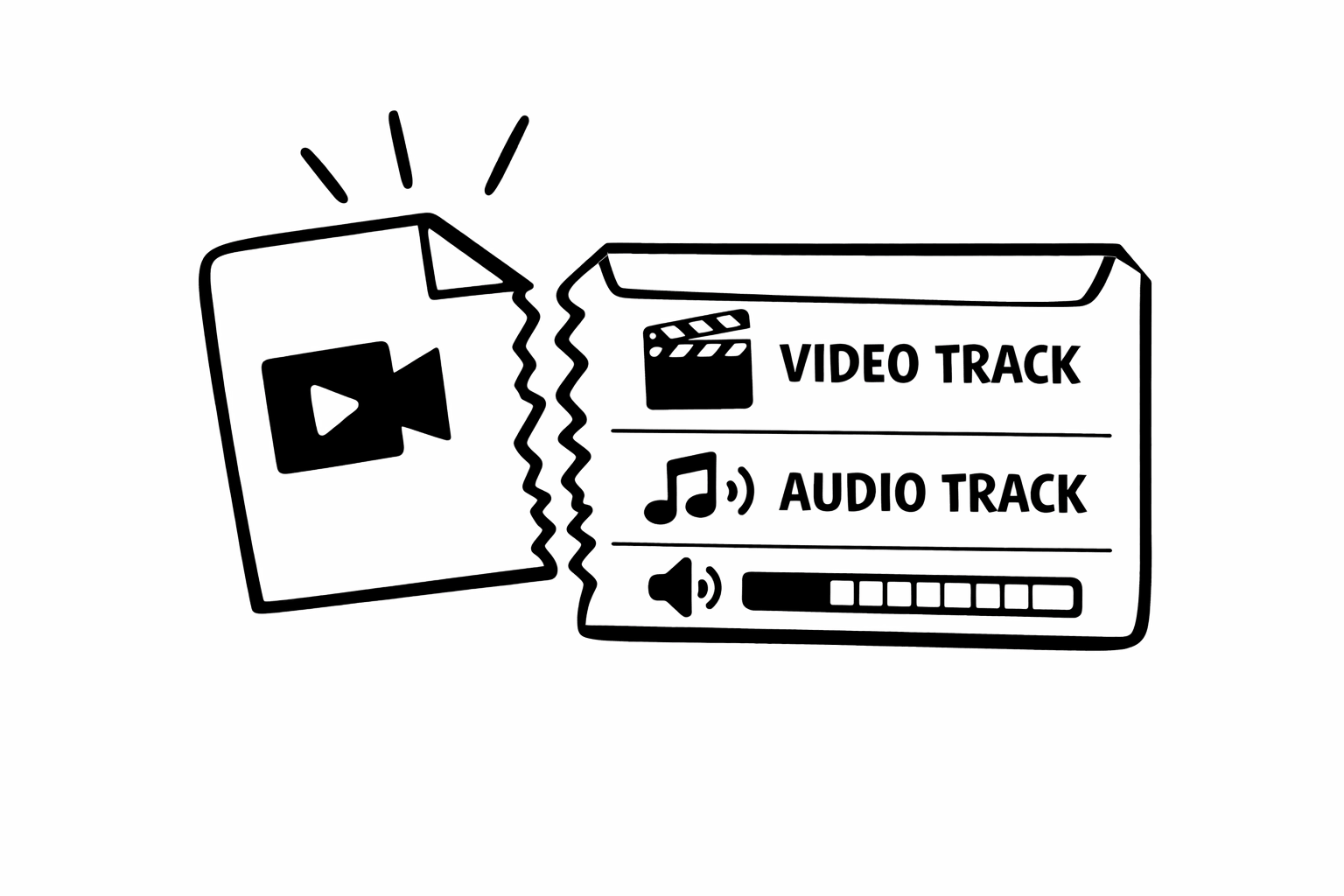
A video file is not a single stream of data. It is a container that holds multiple independent streams, synchronized by timestamps. When you play a video, your media player reads these streams in parallel: decoding the video frames, decoding the audio samples, and displaying them together at the right moments.
Understanding this structure demystifies a lot of common video operations. Removing audio, for example, is not about silencing the sound or setting volume to zero. It is about literally removing a data stream from the container. The video stream remains untouched. The audio stream is discarded. The result is a smaller file that physically cannot produce sound, no matter what media player you use.
I built Remove Audio around this exact operation, and the technical precision of stream removal versus volume muting is something I think more people should understand. It affects file size, compatibility, and whether your silent video is truly silent.
"When I explain to people that a video file contains separate streams that can be independently manipulated, it changes how they think about every video operation. It is the most useful mental model in video editing."
Video Streams, Audio Streams, and Everything Else
A typical video file contains at minimum two streams: one video stream and one audio stream. But many files contain more. A movie file might have one video stream, multiple audio streams in different languages, and multiple subtitle streams. A screen recording might have a video stream, a microphone audio stream, and a system audio stream.
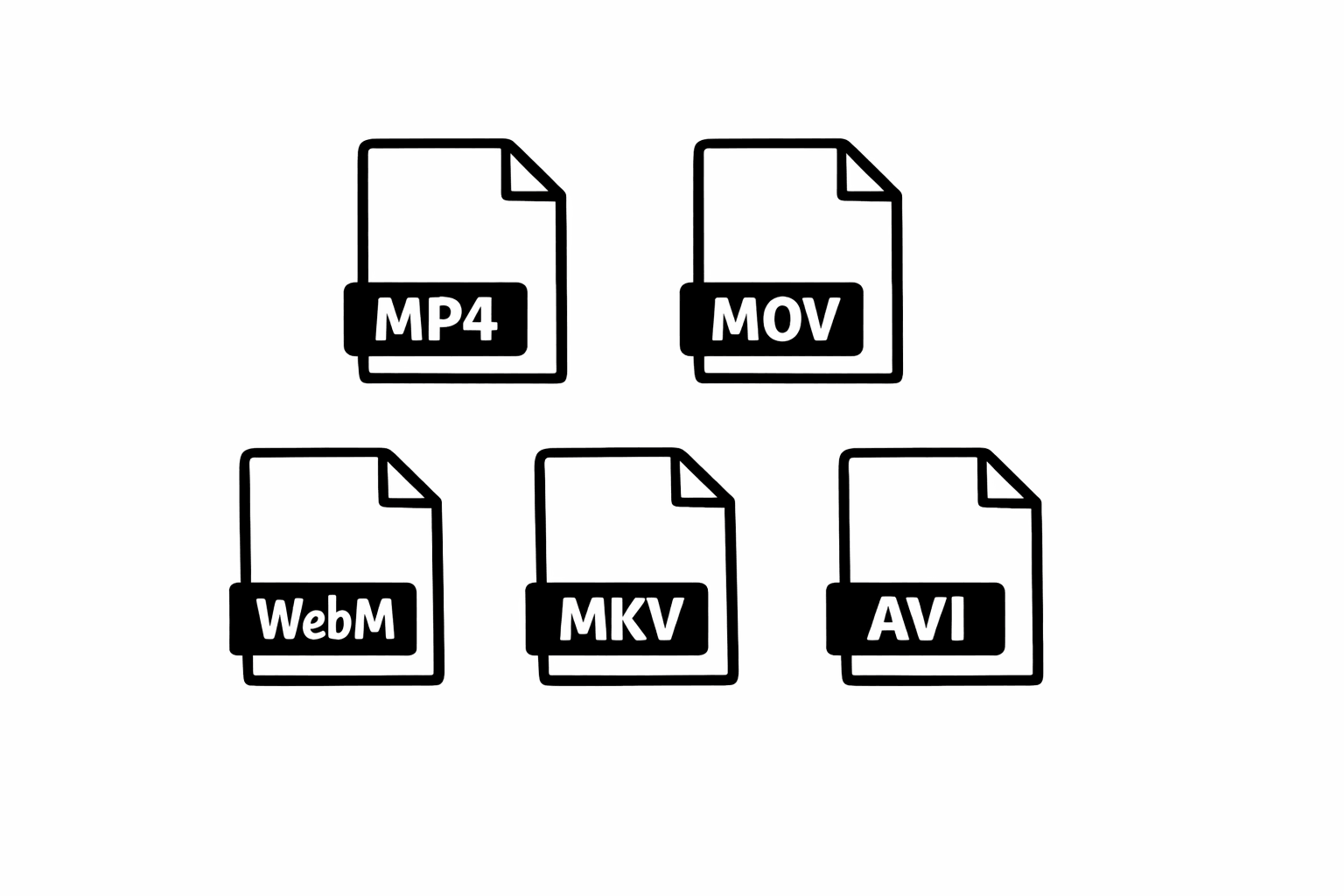
Each stream is encoded independently using its own codec. The video stream might use H.264, while the audio stream uses AAC. They are compressed separately, stored separately within the container, and decoded separately during playback. The container format (MP4, MKV, MOV, etc.) is responsible for keeping these streams synchronized.
When you view file properties of a video, you can often see these streams listed individually. On Mac, QuickTime shows separate tracks. On Windows, right-clicking a file and viewing properties shows basic stream information. VLC's media information dialog shows detailed stream data for any format.
How Audio Streams Work
An audio stream inside a video file is a series of compressed audio samples. The original sound was captured by a microphone as an analog waveform, converted to digital samples (typically at 44,100 or 48,000 samples per second), and then compressed using an audio codec.
The most common audio codecs in video files are AAC (Advanced Audio Coding, used in most MP4 and MOV files), MP3 (older but still common), Opus (newer and very efficient, common in WebM files), and FLAC (lossless compression, used when audio quality is critical). Each codec has different characteristics in terms of compression efficiency, quality, and compatibility.
Audio streams have their own properties independent of the video: sample rate (how many audio samples per second), bit depth (how much data per sample), channels (mono, stereo, 5.1 surround), and bitrate (how much data per second after compression). A typical stereo AAC track in a phone video might be 128 kilobits per second, while a high-quality FLAC track in a professional production could be over 1,000 kilobits per second.
Multi-Track Audio: More Common Than You Think
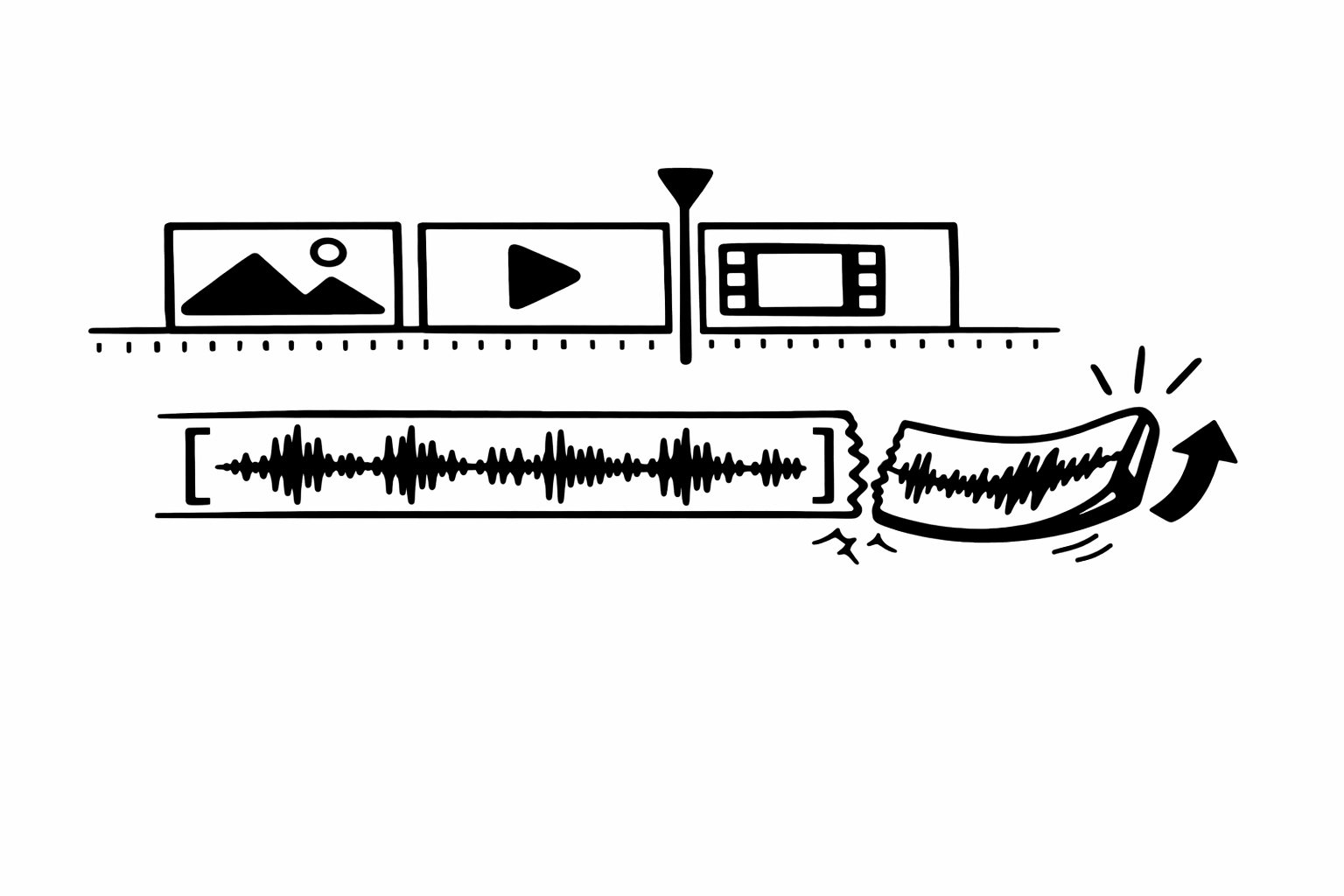
Many video files contain more than one audio track, even if you do not realize it. Here are common scenarios where multiple audio streams exist inside a single video file.
Professional video productions often embed multiple language tracks. A movie file might have English, Spanish, and French audio as separate streams. The media player lets you switch between them.
Screen recordings from certain software capture microphone audio and system audio as separate streams. This is useful because it lets editors adjust the balance between your voice and any application sounds independently.
Some cameras record audio from multiple microphones as separate tracks. Professional cameras often have two or more XLR inputs, each stored as its own stream. This gives editors full control over the audio mix in post-production.
When removing audio from a multi-track file, the question becomes which tracks to remove. In most cases, removing all audio tracks is the goal, and that is what Remove Audio does by default. It strips every audio stream from the container, leaving only the video stream (and any subtitle or data streams) intact.
What Removing Audio Actually Does Technically
There are two fundamentally different approaches to making a video silent, and the distinction matters more than most people realize.
The first approach is muting: the audio data stays in the file, but the volume is set to zero or the playback software ignores the audio stream. Many apps use this approach because it is non-destructive. You can un-mute later. But the audio data, including any private conversations or copyrighted music, is still embedded in the file. Anyone who opens the file with different software could potentially access the audio.
The second approach is removal: the audio stream is physically excluded from the output file. The container is rewritten to contain only the video stream. The audio data does not exist in the output file. It cannot be recovered, accessed, or detected. The file is smaller because the audio data is not there.
Remove Audio uses the second approach. When I designed the tool, I specifically chose stream removal over muting because it provides a stronger guarantee of silence. If you are removing audio for privacy reasons, you need the audio to be gone, not just quiet. If you are removing audio for copyright compliance, you need the copyrighted material to not exist in the file, not to be muted during playback.
Understanding Audio Codecs
Audio codecs compress raw audio data to reduce file size. Without compression, a minute of stereo audio at CD quality (44,100 Hz, 16-bit) would consume about 10 megabytes. Codecs reduce this to a fraction of that size while maintaining acceptable quality.
AAC (Advanced Audio Coding) is the most commonly encountered codec in video files today. It offers good quality at low bitrates and is universally supported. If your video is an MP4 or MOV, the audio is almost certainly AAC.
Opus is newer and technically superior to AAC at most bitrates. It excels at both speech and music, handles variable bitrates well, and is royalty-free. You will find Opus in WebM files and increasingly in modern streaming platforms.
MP3 is the codec everyone knows. It is older and less efficient than AAC or Opus, but its universal support means you still encounter it regularly. Some AVI files and older video formats use MP3 audio.
FLAC (Free Lossless Audio Codec) compresses audio without losing any data. It is used in professional workflows where audio quality cannot be compromised. FLAC files are larger than lossy codecs but guarantee bit-perfect reproduction of the original audio.
"The audio track in your video file is an independent entity with its own codec, bitrate, and channels. Understanding this makes every audio operation, from removal to mixing, conceptually clearer."
Audio Metadata and Hidden Information
Audio streams carry more than just sound. They include metadata that can contain information about the recording device, the recording software, timestamps, geographic location, and sometimes even the name of the person who created the file.
This metadata is often invisible during normal playback but can be extracted using tools like MediaInfo, FFprobe, or ExifTool. For privacy-conscious users, this is another reason to remove audio entirely rather than just muting it. Muting preserves the audio stream and its metadata. Removal eliminates both.
When Remove Audio strips the audio stream, all audio metadata goes with it. The output file retains video metadata (resolution, codec, frame rate) but the audio-specific information is completely removed. This is by design and is particularly important for users who are removing audio for privacy reasons.
Understanding Leads to Better Decisions
Knowing how audio tracks work inside video files is not just academic knowledge. It directly affects how you handle common tasks like muting videos, choosing export settings, managing file sizes, and protecting privacy.
The key takeaway is that audio and video are independent streams that can be manipulated separately. Removing audio means physically removing a data stream, not turning down the volume. Multi-track audio is more common than most people realize. And audio metadata can contain information you did not intend to share.
Whether you use Remove Audio or any other tool, understanding these fundamentals helps you make better decisions about your video files. And if you have questions about anything I have covered here, I am always happy to dig deeper. Reach out through the contact page and I will do my best to help.