Why Formats Matter More Than You Think
Most people never think about video file formats until something breaks. They record a video, it ends up as an MP4 or MOV, and they share it. Everything works fine until it does not: a video that will not play on a website, a file that is twice as large as expected, or a clip that loses quality every time it is exported.
As a developer who has spent years processing video files in the browser, I deal with format issues daily. The emails I get from users almost always come down to a format or codec problem. Understanding the basics saves real headaches, and it does not require an engineering degree.
The most important concept to understand is the difference between a container and a codec. Once that clicks, everything else falls into place.
"A container is the box. A codec is how the contents are packed inside. Understanding this distinction solves 90 percent of video format confusion."
Containers vs Codecs: The Fundamental Distinction
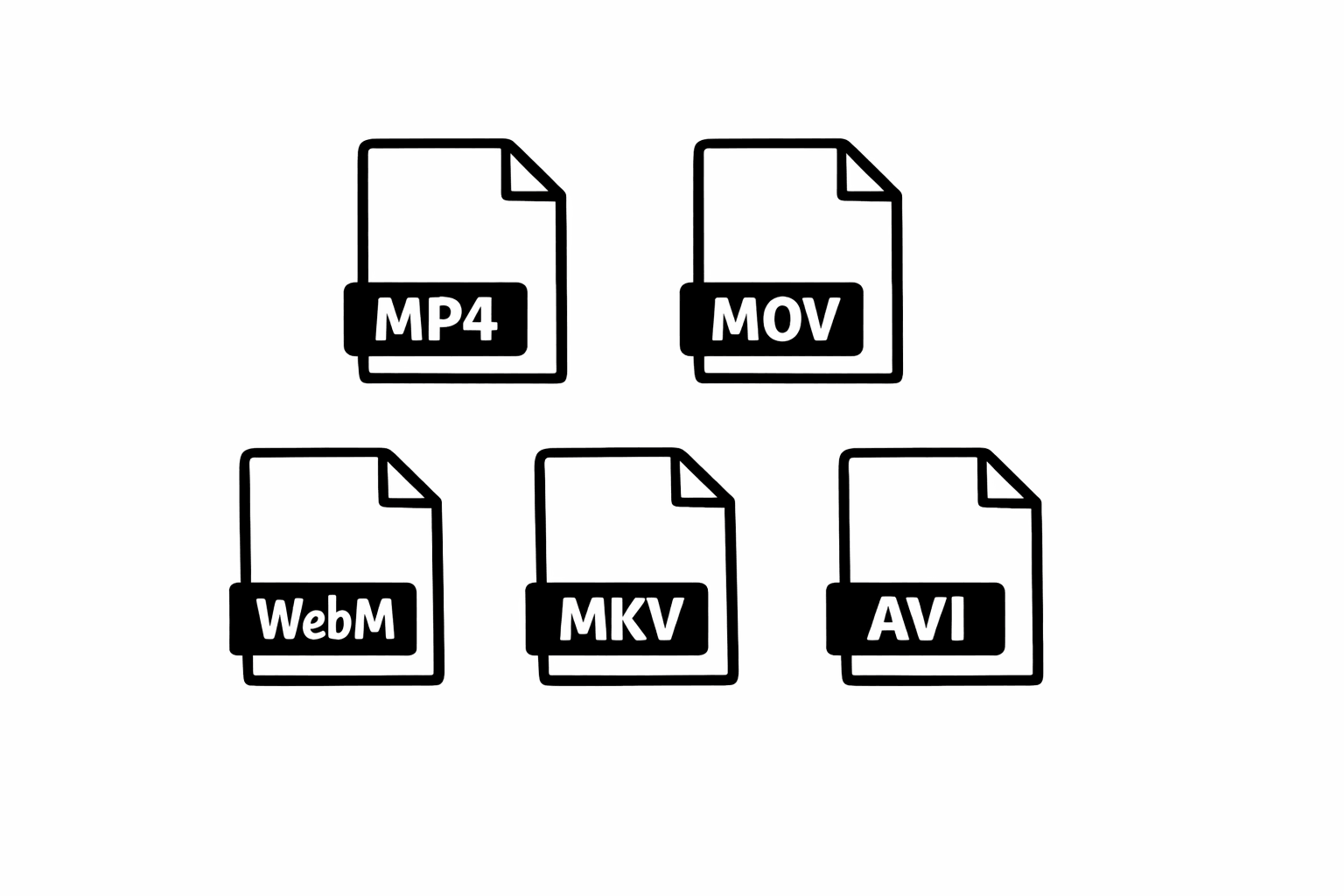
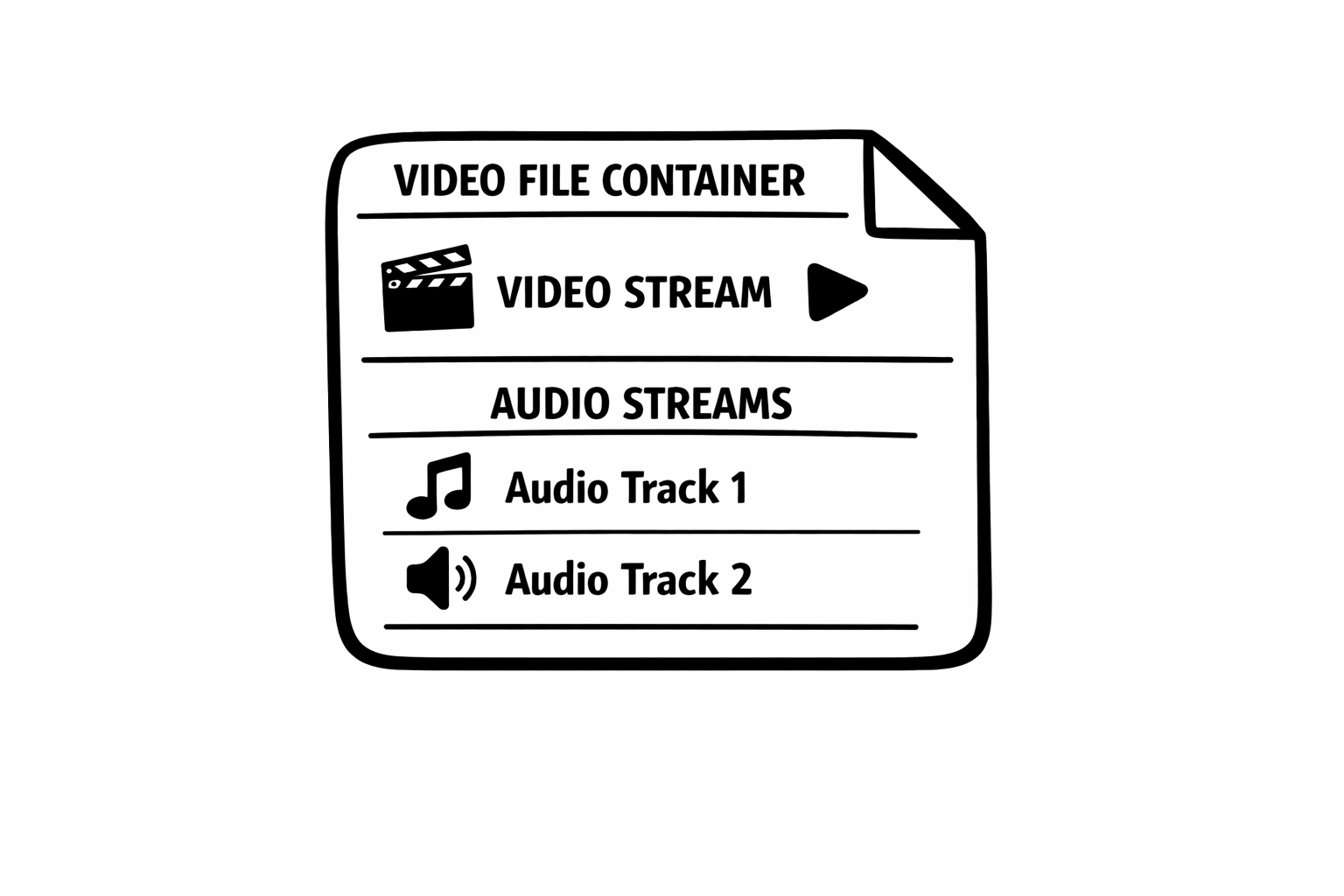
A video file is not a single thing. It is a container that holds separate streams of data: typically a video stream, an audio stream, and metadata like timestamps and subtitles. The container is the file format you see in the extension: .mp4, .mov, .mkv, .webm, .avi.
Inside that container, the actual video and audio data are compressed using codecs (coder-decoders). The video stream might use H.264, H.265 (HEVC), VP9, or AV1. The audio stream might use AAC, MP3, Opus, or FLAC. The container holds these compressed streams together and keeps them synchronized.
This is why you can have two MP4 files that behave completely differently. One might play everywhere because it uses H.264 video and AAC audio (the most universally supported combination). Another might fail to play on certain devices because it uses H.265 video, which older browsers and phones do not support. Same container, different codecs, different compatibility.
MP4: The Universal Standard
MP4 (MPEG-4 Part 14) is the closest thing we have to a universally supported video format. It plays on every major browser, every phone, every operating system, and every social media platform. If you do not know what format to use, use MP4.
The most common codec pairing inside MP4 is H.264 for video and AAC for audio. This combination works essentially everywhere and offers a good balance between file size and quality. Newer MP4 files might use H.265 (HEVC) for better compression, but at the cost of compatibility with older devices and some browsers.
When I built Remove Audio, I made MP4 the primary supported format because it covers the vast majority of use cases. When the tool outputs a muted video, it preserves the original MP4 container and video codec while simply removing the audio stream. No re-encoding, no quality loss, and the file stays compatible with everything it was compatible with before.
MOV: Apple's Native Format
MOV was developed by Apple and is the default recording format on iPhones and many Mac applications. Technically, MOV and MP4 are closely related. They are both based on the same ISO base media file format, and in many cases you can literally rename a .mov file to .mp4 and it will play fine (though I do not recommend relying on that).
MOV files from iPhones typically use H.264 or H.265 (HEVC) for video and AAC for audio. If you record in the default settings, the file is highly compatible. If you enable ProRes or other professional codecs in your iPhone's camera settings, compatibility drops significantly.
For most people, MOV and MP4 are interchangeable. The main reason to be aware of MOV is that if you are on an iPhone, your videos are probably MOV files, and they will work fine with essentially any video tool or platform.
WebM: The Web-Native Choice
WebM is Google's open, royalty-free video format designed specifically for the web. It typically uses VP8 or VP9 for video and Vorbis or Opus for audio. If you record your screen using a browser-based tool, there is a good chance the output is WebM.
The advantage of WebM is that it is optimized for web playback and is royalty-free, which means no licensing costs for anyone involved. The disadvantage is that support outside of web browsers is inconsistent. Apple devices historically had poor WebM support, though this has improved in recent years.
WebM files tend to be smaller than equivalent MP4 files at the same visual quality, thanks to the efficiency of VP9. For web-only content, WebM is an excellent choice. For content you need to share across devices and platforms, MP4 is safer.
MKV: The Flexible Container
MKV (Matroska Video) is the Swiss Army knife of video containers. It can hold virtually any combination of video codecs, audio codecs, subtitle tracks, and metadata. It is extremely popular for high-quality video storage and is the default output of many video encoding tools.
The trade-off is compatibility. While MKV is beloved by video enthusiasts and well-supported by desktop media players like VLC, it is not natively supported by most browsers or mobile devices. You cannot upload an MKV to Instagram. Safari will not play it natively. Many web-based tools struggle with it.
MKV is ideal for archiving and personal use where you control the playback environment. If you need to share video broadly, convert to MP4 first. My tool supports MKV input, but I always recommend MP4 for output when the goal is broad compatibility.
AVI: The Legacy Format
AVI (Audio Video Interleave) is one of the oldest video container formats, introduced by Microsoft in 1992. It still works and you will occasionally encounter AVI files, especially from older cameras, screen recording tools, or legacy software.
AVI lacks many features that modern containers support, like native streaming, variable frame rates, and modern subtitle formats. It also tends to produce larger files than MP4 or WebM at equivalent quality because it predates many modern compression efficiencies.
If you have AVI files, they will usually work with video tools including mine, but I recommend converting to MP4 for long-term storage and sharing. There is no advantage to keeping video in AVI format today unless a specific legacy system requires it.
How to Choose the Right Format
After working with every common video format, here is my simple decision framework.
For sharing on social media or with other people, use MP4 with H.264. It works everywhere. No exceptions, no caveats.
For web-only content where file size matters, consider WebM with VP9. Smaller files, good quality, but limited compatibility outside browsers.
For archiving or personal storage where quality is the priority, use MKV. It handles every codec, supports multiple audio and subtitle tracks, and will be readable by media players for the foreseeable future.
For Apple-ecosystem workflows, MOV is fine. It is essentially the same as MP4 in most cases, and your Apple devices already produce it natively.
"I have processed millions of video files through my tool. The format and codec combination determines whether things work smoothly or fall apart. MP4 with H.264 is boring. It is also the right choice 90 percent of the time."
Formats Are Tools, Not Religion
Video file formats are a means to an end. The best format is the one that works for your specific use case: the platform you are uploading to, the devices your audience uses, and the quality and file size constraints you are working within.
For most people, the practical takeaway is simple: if your video is MP4, it will work almost everywhere. If it is MOV from an iPhone, it will also work almost everywhere. If it is anything else and you need broad compatibility, convert to MP4.
When you use Remove Audio, the tool preserves your original format and codec. It removes the audio stream without re-encoding, so what comes out is technically identical to what went in, just quieter. Understanding your format helps if something goes wrong, but for the common case, you can just drop your file and trust the tool to handle the rest.